 Tuikor Guide Editors
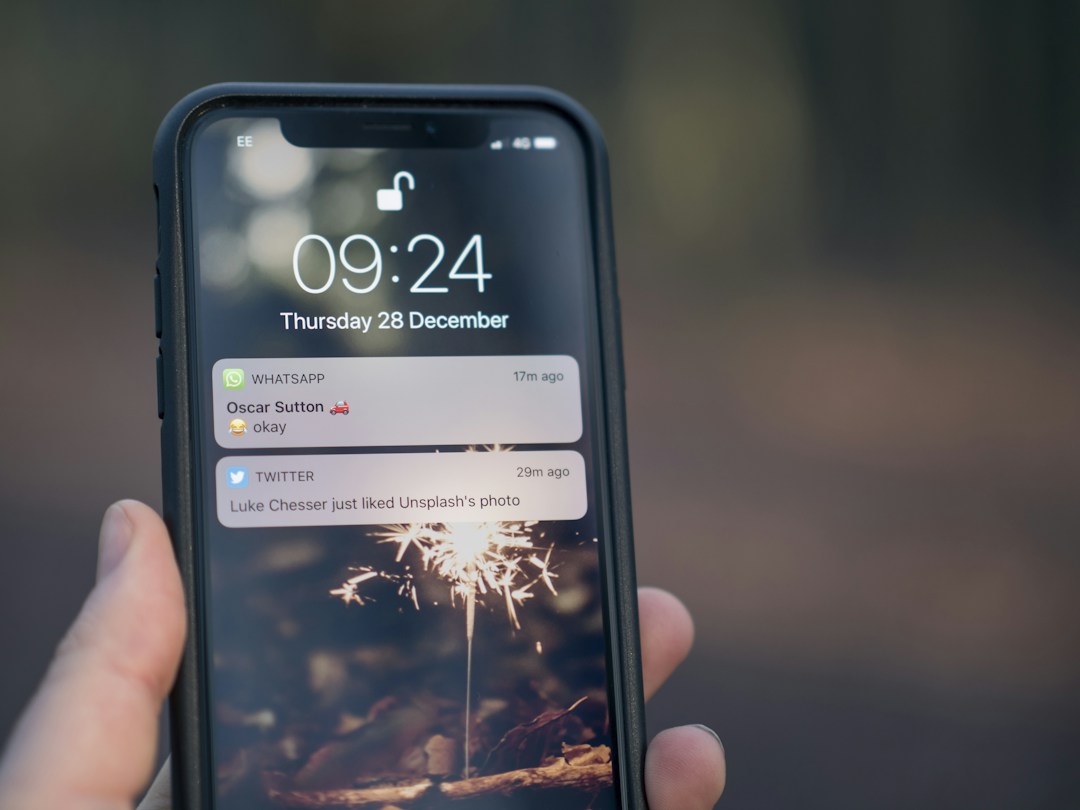
AI companions can send friendly check-ins, but a helpful reminder at lunchtime can become an unwelcome interruption at midnight. You do not need to accept all-or-nothing notifications to use an AI app. This checklist combines the app’s own settings with phone-level controls and an observable test that protects both quiet time and message privacy.
Separate push alerts from chat messages and marketing reminders
A companion app can generate many kinds of messages: an ordinary response to something you said, a scheduled reminder you requested, a relationship-style check-in, a subscription promotion, or an account-security alert. These should not share one unexplained notification switch. Open the app’s notification preferences and record every category that appears. If no categories exist, note whether the only option is to disable all alerts through the operating system. Identify whether a message appears while the app is open, only when it is backgrounded, or even after you sign out. A useful quiet-hours test also distinguishes a message being silently delivered from one that wakes the screen, vibrates or speaks aloud through connected devices. Before changing settings, create a baseline by recording a few notifications with their timestamps, while avoiding screenshots that reveal private chat text. The goal is to learn which layer controls each interruption rather than assuming a single button will stop all communication.
Use iPhone Focus rules as a second line of control
Apple’s iPhone user guide explains that Focus can allow or silence notifications from selected people and apps. On an iPhone, open Settings, choose Focus, select a focus profile for sleep or work, and review its app notification rules. Depending on iOS version and your configuration, you may be able to silence the AI companion while still permitting a small group of essential apps to reach you. Examine options for time-sensitive notifications and other exceptions rather than assuming a Focus profile blocks everything. Then check the app’s individual notification settings under Settings and Notifications. The application might also have its own quiet-hours feature; compare the two rather than treating them as identical. Test a planned check-in while Focus is active, observe the lock screen and notification center, and repeat after Focus ends. Keep emergency contacts and genuinely important alerts configured sensibly. Menu labels vary with software releases, so follow the current guide for your device instead of relying on an outdated screenshot.
On Android, check app-level channels and device-specific behavior
Google’s Android Help documentation describes per-app notification settings, notification history and controls that can vary by device manufacturer. Open your Android device’s Settings and find Notifications, then locate the AI companion application. On supported phones, inspect the types or channels of notification shown, especially promotional messages versus conversations. Some Android versions let you make a category silent without disabling the application completely; other interfaces group settings differently. Look at lock-screen visibility to see whether content previews expose your companion’s messages when someone else handles your phone. If notification history is available, it can help confirm whether a message was delivered silently during a test period. Do not assume identical menus across Pixel, Samsung and other vendors. Record your OS version and manufacturer when comparing two apps; otherwise, a phone-level difference might incorrectly be attributed to the AI service itself.
Create a transparent personal quiet-hours policy
A practical rule might say no proactive companion notifications between 10 p.m. and 7 a.m., with manually requested reminders handled separately. This is an illustrative preference, not a medical recommendation. Decide whether you want alerts from an AI companion during meetings, while traveling across time zones, or when a device is used by family members. Ideally the app should clearly state what will happen when quiet hours begin: whether proactive messages are paused, queued for the next day, or merely delivered without sound. If a service ignores your selected window, record whether the issue concerns the app’s internal scheduling or the operating system’s presentation of notifications. Review the app’s time-zone behavior if you move between countries; a profile intended for local night hours may not automatically follow your new location. Be wary of settings that quietly reactivate promotional notifications after an update or require a paid subscription to disable manipulative reminders. Good user control should be predictable and easy to reverse.
Run a 24-hour observation with a reproducible checklist
After setting your policy, conduct a small test instead of relying on one lucky silent evening. Note your device version, app build number, notification permission state and Focus or Android Do Not Disturb schedule. During a daytime window, send an ordinary chat message, request a benign reminder if supported, and observe whether the notification behaves as expected. At night, avoid manufacturing emergencies; simply inspect whether scheduled or proactive alerts are silent, delayed or visible on the lock screen. The next morning, determine whether queued notifications arrived all at once and whether duplicates appeared. Compare in-app activity logs with operating-system notification history where available. If an alert still arrives despite the quiet setting, capture the time and alert category, then report the behavior through the app’s support process. Repeat after one app update because permission categories and defaults can change. A methodical one-day observation gives more reliable evidence than judging the product by a marketing promise.
Assess privacy, accessibility and user autonomy together
Notification control is more than convenience. A lock-screen preview can expose private conversations to a coworker or family member, and unexpected audio output can reveal an intimate or personal topic. Review whether previews can be hidden while still showing a generic alert. Users who rely on screen readers, vibration or visible indicators may need different combinations of sound and display settings; turning every alert off indiscriminately is not always the best solution. An AI companion should not guilt users into re-enabling notifications or manufacture urgency to boost session counts. Verify that declining reminders does not disable basic chat or prevent you from accessing previously saved conversations. Check promotional emails and SMS subscriptions separately, as mobile push settings may not cover other channels. A consumer-friendly design lets people control timing, content visibility and frequency without losing ordinary app functionality. The strongest product is not the one that demands your attention most often, but the one that respects when you choose to be unavailable.
Quiet hours work when preferences survive restarts, travel and app updates. Compare what the interface promises with what your phone actually receives, and keep evidence of any unexpected alerts.
Sources






