 Tuikor Guide Editors
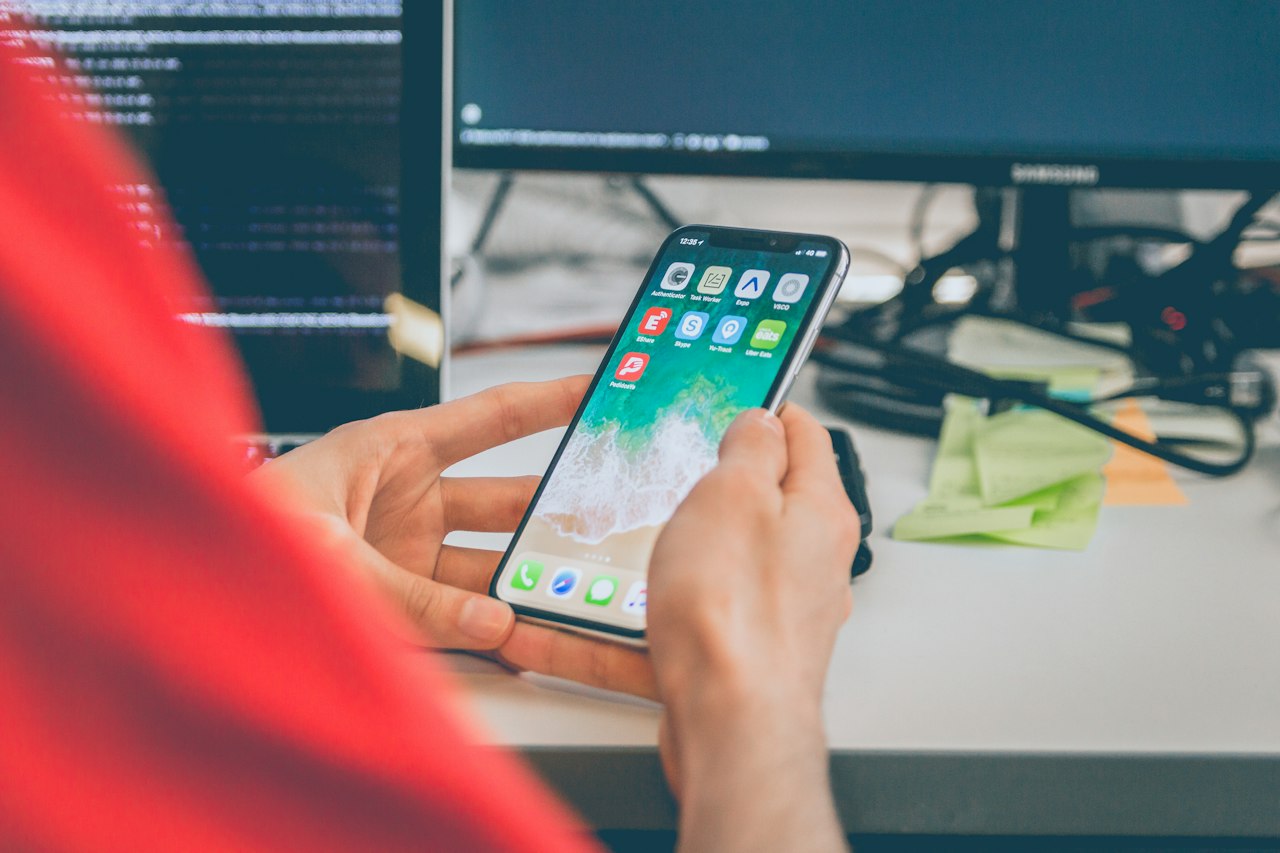
When a consumer creates an AI digital avatar, the first prompt may ask for photos. The important question is not simply “does the app need my picture?” but “how much of my library am I allowing it to see?” This guide compares selected-photo interfaces on Android and iPhone through a repeatable privacy test rather than vague promises about secure apps.
Understand the two different permission models
An AI avatar app may need one selfie, not the entire photo library. On Android, the system Photo Picker can let you choose specific images or videos for an app without providing blanket media-library permission. Android’s developer documentation explains this selected-media flow and device availability. On iPhone, Apple’s PhotosUI framework likewise supports a system picker through which the app receives only chosen items. Separate from that picker, iOS also supports limited photo-library authorization for apps that request Photos access. The user-facing screens may look similar, but those are distinct technical routes. You do not need to identify the internal API name to make a sensible consumer decision. You need to observe what was requested, what you selected and what the app can do afterward.
Run a controlled one-photo upload test
Choose a harmless test image that contains no real identity document, location information or bystander. Before opening the AI app, note whether its photo permission is allowed, denied or limited in the phone’s settings. Tap the avatar upload button and observe whether the operating system presents a familiar image picker or the app requests broad access. Select exactly one test photo, upload it, and check the preview for the expected crop. Restart the app and attempt a second upload: does it ask you to choose again or display your entire camera roll automatically? Record the result with a short written note rather than screenshotting other people’s photos. A well-designed selected-photo flow should not need a blanket grant for an ordinary single-selfie upload. However, different product features may legitimately have different access needs.
Check selected photos versus limited-library access on iPhone
If the app asks for broader library permission, iOS may offer limited access depending on the request and OS version. Apple documents the limited authorization state and a picker for managing the authorized selection. Open the relevant privacy settings and examine whether the app sees selected photos or the entire library. Repeat the test after changing the allowed selection. If you had previously given unrestricted access, reduce it only if that does not break a feature you intentionally use. Do not assume that revoking a photo permission also deletes images already uploaded to a server. The permission describes future local access; remote retention requires a separate product policy and, where offered, a deletion workflow. Take note of any feature that stops working and whether the app explains the tradeoff clearly.
Inspect the Android picker and its fallbacks
Android Photo Picker behavior varies across OS versions, system modules and devices. The Android documentation describes availability on modern Android versions and options for supported older devices, as well as a possible document-picker fallback. Therefore, an older phone showing a different file selection screen is not automatically unsafe. Focus on the practical scope: did the app request access only to the chosen image, or an ongoing read-media permission broader than the task? After uploading, visit Android’s permission manager and check the app’s media access setting if one is exposed. For repeatability, document the device model, Android version and app version. Avoid confusing a file chooser opening a cloud provider with the AI app being granted long-term access to every cloud photo. Check the actual consent prompt.
Separate device authorization from online data retention
Selecting an image is only the first step of an AI avatar workflow. The app may send a copy to a server for face processing, thumbnails, model customization or moderation. The operating system picker does not determine how long that copy remains stored or whether derivatives are created. Read the app’s published data policy and look for specific explanations of uploads, derived images, deletion, support access and cross-border processing. Test available delete controls using the harmless image, wait for the stated processing window, and check whether the item remains in your account. If a policy is silent, mark the answer unknown rather than assuming immediate removal. Also remember that device photo permissions may affect local images differently from a server-side history that can still appear after you sign in on another device.
Use a simple scorecard before uploading a real selfie
Score five observable items: permission scope, clarity of the system picker, control over the submitted image, explanation of remote retention, and availability of a delete or correction path. For example, you can assign one point per item only when the evidence is directly visible or stated in applicable product documentation. A hypothetical score of three out of five is a reminder to investigate two open questions, not a security certification. Keep the image test free of another person’s face or private documents. For an AI social app such as Tuikor AI, evaluate the experience as a mainstream digital-persona interaction product: selfies and chat features should be understandable without relying on sensational marketing or overstating the operating system’s guarantees. No picker can eliminate all security risks, but clear choices reduce unnecessary access.
Use selected-photo access where the app supports it, and evaluate server-side data handling separately. The safest practical test uses a non-sensitive image, documents the exact permission prompt and checks what happens after upload and deletion. A clear user journey is more meaningful than a single badge saying “privacy protected.”






