 Tuikor Guide Editors
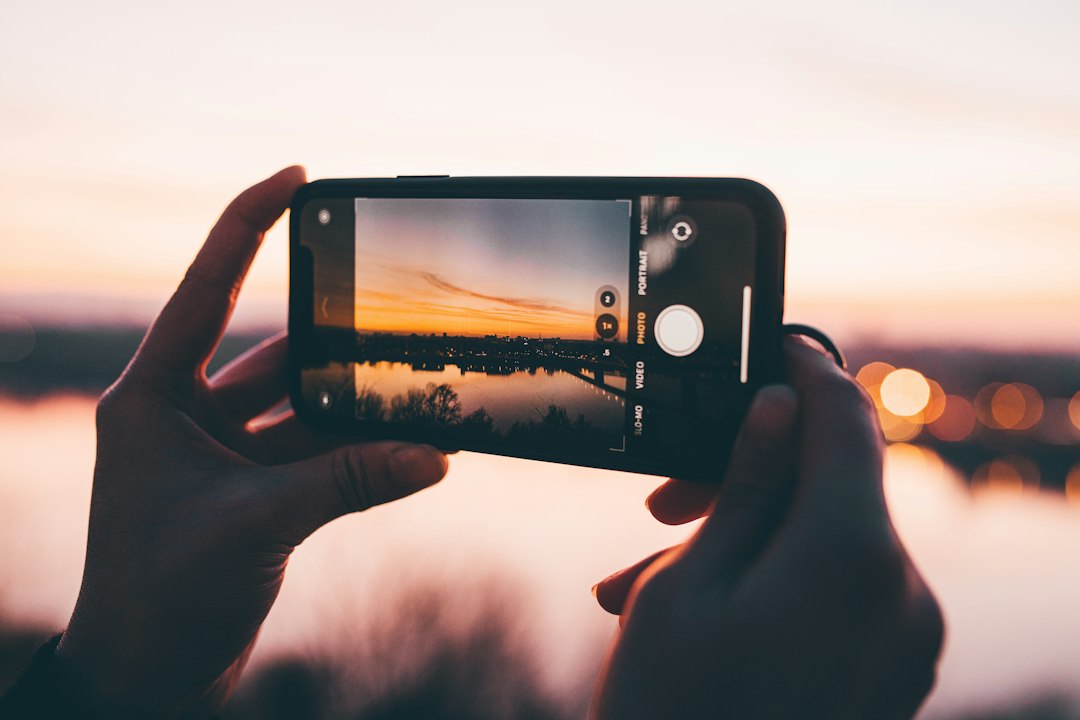
Saving an AI-generated selfie or a shared chat image to your phone can create another copy with different backup rules from the original AI app. Apple’s iCloud Photos documentation explains how a synchronized library remains current across Apple devices, while Google Photos Help explains how photo and video backup can be configured. The question for a buyer is not simply which cloud service is more private, but which files actually enter either service, who can see them, and what deletion removes. This guide proposes a safe comparison using test images rather than personal photos.
Separate in-app media from downloaded photos
Begin by creating a harmless test image inside an AI app. Note whether it stays in the chat, appears in the app’s local cache, or is saved to the device’s photo library only after tapping Save or Export. A generated clip being visible in a chat does not prove the original bytes have been placed in iCloud Photos or Google Photos. Similarly, saving a file into the Files app is not always the same as adding it to Photos. Record the app version, export action and timestamp, then use a visibly unique test image so you can identify it later without scanning real personal photos. If the AI service offers its own online media storage, treat it as a third separate system. Its account deletion rules may have nothing to do with the phone’s gallery backup settings.
Test iCloud Photos using a controlled Apple device
On an iPhone you own, open Settings and inspect the Photos synchronization controls for your Apple Account before exporting a test image. Apple says iCloud Photos keeps the library current across devices using the same account. After saving, confirm whether the test image appears in Photos and, if appropriate, on another authorized Apple device or the user’s own iCloud Photos view. Do not sign into an unfamiliar computer to perform this test. Be careful when using shared libraries or shared albums: they can create additional access paths to an image. If you test deletion, use only disposable media because removing an item from a synchronized Photos library can affect other devices. Apple support documentation notes a Recently Deleted recovery period in ordinary cases, with exceptions depending on account storage conditions. Track the timing and visibility on each device.
Test Google Photos backup without assuming it is on
Google Photos Help describes backup settings and account-specific storage. On an Android or iPhone with Google Photos installed, check which Google Account is active and whether backup is enabled. Inspect the relevant folders and selected device content rather than assuming that every downloaded AI image will be uploaded automatically. Android users should pay particular attention to whether a chat app exports to the camera directory, Downloads, a screenshots folder or an app-specific location; backup selection can vary. Save a distinct disposable image, note where it appears, then use the official Photos interface to check its backup status. Do not confuse a thumbnail visible inside the app with confirmation that a cloud copy exists. Also avoid connecting a work account or a family account solely for testing. If the image is shared through a link or album, investigate that sharing route independently of backup.
Check metadata, screenshots and sharing permissions
An AI photo can carry a filename, creation time, export metadata, or other details that matter when the file is forwarded. Do not assume every AI-generated image contains camera GPS metadata, but do not assume every exported photograph is stripped of location information either. Review the file’s information pane and any sharing dialog before sending it. If the goal is to show a digital persona image to a friend, the platform’s own link may preserve different permissions and expiry behavior than emailing a file. Screenshots can accidentally capture account names, chat text or notification previews that were not part of the original artwork. Use a test screenshot of a fake conversation to inspect what it exposes. If your app has privacy labels, compare those descriptions with observed file behavior, but do not treat a one-device test as proof about all server-side storage.
Compare deletion and recovery in a synchronized library
Create a safe deletion experiment only with disposable images. First delete one local duplicate saved outside the photo library and verify whether the cloud Photos copy remains. Then separately test deleting an image from the synchronized photo library while watching another device tied to the same account. Apple’s September 2026 storage guidance notes that deleting a photo in iCloud Photos can delete it on other synchronized devices; recovery may be available from Recently Deleted for 30 days under normal conditions. Google Photos has its own trash and backup behavior, so follow its current official Help guidance rather than carrying over iCloud assumptions. Record where the image still appears after each action. Avoid emptying a trash or account library to simulate deletion if real personal media could be affected. Importantly, neither deletion proves that copies already sent to other people have disappeared.
Create a six-point privacy verdict before paying
A practical consumer scorecard asks whether the app explains export behavior, whether the phone saved a local copy, whether photo backup is enabled, which account receives the backup, whether sharing links grant extra access, and what deletion actually removes. Use a yes, no or unknown result for each check; unknown is more honest than inventing security assurances. Repeat the experiment when switching phones or changing Apple and Google accounts. If you do not want private AI chat pictures on a family tablet, check both the app’s sync settings and the system photo library before exporting. Separate a provider’s chat-retention policy from Apple or Google Photos settings and keep only the copies you need. A good privacy outcome is a documented path from generation to export, backup, sharing and deletion—not a generic claim that cloud photos are always safe.
Sources and current support references
- Apple Support, How to turn off iCloud Photos (updated 2026)
- Apple Support, Manage iCloud storage and deletion, September 2026
- Google Photos Help, Back up photos and videos (living documentation)
Image: Unsplash. All device testing should use disposable media.






