 Tuikor Guide Editors
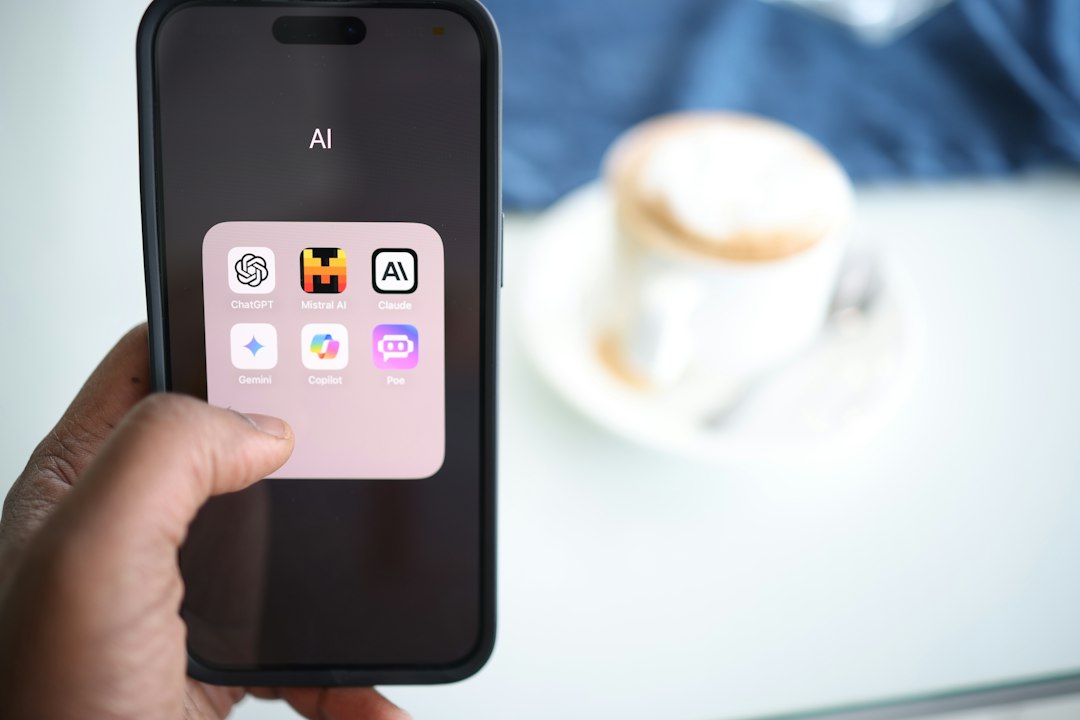
After an iOS or Android update, an AI voice chat may behave differently without any account or data breach. This consumer checklist explains how to distinguish permissions from headset, language, network and storage questions.
An operating-system update can change the context of a permission
An AI avatar app that supports spoken conversation needs microphone access for certain voice features, but the permission is not evidence that audio is actively being recorded all the time. After a phone update, users may notice new privacy explanations, a permission prompt or a changed interface. The responsible response is to inspect the current settings, not to assume the app is secretly recording or that reinstalling will solve an unrelated account issue.
Before changing settings, write down which feature failed: voice message capture, live voice conversation, playback through headphones or camera-based video interaction. Playback may be a speaker or Bluetooth routing problem rather than an input permission failure. Testing one issue at a time avoids granting more access than the feature needs. Screenshots should avoid exposing private chat content or other people in the device’s notification list.
On iPhone, review microphone access explicitly
Apple’s iPhone guidance for controlling hardware access explains that apps must request permission before using the microphone or camera and that users can review requested access in Settings under Privacy & Security. The operating system also shows orange and green visual indicators when the microphone or camera is in use. These indicators represent active hardware access, not a proof of how a vendor later stores audio.
Open Settings, Privacy & Security and Microphone, then find the AI app if it has previously requested access. Disable the permission, open a feature that requires it, and observe the app’s behavior and explanatory message. Re-enable only if the intended function requires access. For a live video call, check Camera separately. If the system reports recent use, review whether it corresponds to an action you just initiated.
On Android, use the privacy controls available to your version
Android’s developer privacy checklist describes the Privacy Dashboard introduced for Android 12 and higher, which helps users understand when apps accessed camera, microphone and location data. The screen location and wording can differ by device brand and Android version, so a guide should not promise identical taps on every handset. The controls and the app’s disclosure both matter.
Use your phone’s Settings search for Privacy Dashboard or Permission manager. Inspect microphone and camera access for the specific AI app and compare recent timestamps with your own activity. On devices that expose a global microphone toggle, a disabled system control may block a perfectly valid app request. Restore the setting only after you understand the trade-off and are comfortable with the intended feature. Do not treat a list entry as evidence of malicious recording.
Check headset, language and app-level voice settings
A recording failure may come from a Bluetooth headset with a disconnected microphone, a device being used for a call or an app voice mode whose language selection changed. Test with the device microphone first and then reconnect external audio equipment. Make sure the app is not muted by a hardware or system setting before reinstalling.
Record a short neutral phrase that contains no personal information, then listen for playback or inspect the returned transcript if the app offers one. Repeat on Wi-Fi and mobile data to separate local microphone problems from network latency. A transcription error does not mean that the microphone permission was denied. If the voice feature relies on a remote model, data transmission and retention should be evaluated from the service’s actual privacy terms.
Avoid giving permissions to troubleshoot unrelated issues
Users may be tempted to turn on every permission after an update. That is usually unnecessary. A text-only chat should not require camera access. A voice message may require microphone access but not location or a full photo library. An AI personality video interface might need camera access only when sharing live imagery, not to display a prerecorded digital avatar.
Create a small test matrix of features and required permissions. For each, disable unrelated permissions and confirm the basic function still works. If the app refuses to open at all without a permission that appears unrelated, contact its provider with the app version and observed screen. The product should communicate why access is requested and allow users to continue with supported non-sensitive features.
Escalate with evidence and keep control over your data
If the app still fails after a system update, collect the operating system version, app version, time, the precise feature attempted and whether the permission prompt appeared. Share that diagnostic summary with support instead of exporting a long private AI conversation. You can also check the official app listing or provider documentation for a known compatibility issue.
A safe support workflow separates account access, entitlement restoration, microphone capture and cloud speech processing. Users should be able to see what permission they granted and change it later. This checklist is about consumer troubleshooting, not a claim that either iPhone or Android always stores or deletes voice recordings in a particular way. The service’s stated retention and deletion rules must be checked independently.






