 Tuikor Guide Editors
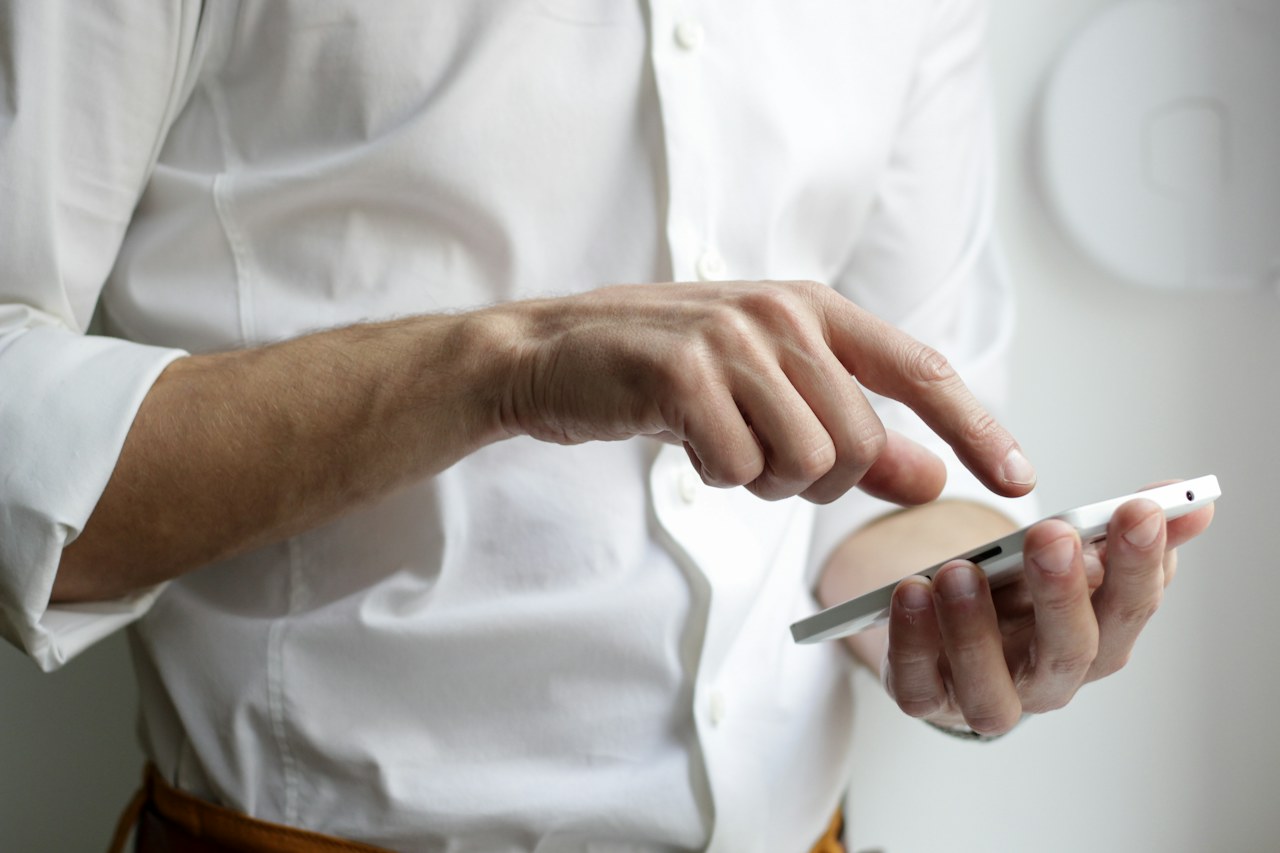
An AI companion can feel lightweight in text mode yet consume noticeably more battery during voice and video interaction. A buyer trying to compare apps often sees an iPhone battery percentage without knowing whether the difference came from screen brightness, weak reception, background audio or the application itself. Apple documents how the Battery settings distinguish on-screen activity, background use, notifications and cellular conditions. That makes a fair comparison possible without expensive measurement equipment. This guide explains how to test three experience modes under repeatable conditions, interpret the results conservatively and decide whether an app fits a travel or commuting routine.
Begin with a repeatable baseline
Charge the phone to a consistent range, let it reach normal operating temperature and close unrelated high-activity tasks. Record the iPhone model, iOS version, battery health as displayed, screen brightness, display refresh setting, network type and signal quality. Compare apps on the same device whenever possible. Do not disable every background process in one test while leaving notifications active in another, because that would change the conditions. A simple spreadsheet should have a row for each test and a column for every setting that might affect energy use. Battery percentages are coarse indicators, so repeat a session several times rather than treating a one-point difference as decisive.
Test text, voice and video separately
Use three practical scenarios: fifteen minutes of text conversation, fifteen minutes of two-way voice, and fifteen minutes of any supported video-avatar interaction. Keep the interaction script and conversation turn count approximately comparable. For voice, make sure speaker volume and microphone access are similar; for video, match brightness and resolution settings where users can control them. Record the visible percentage drop, phone temperature impression, app foreground time and any unusual pauses. A video call may consume more power because decoding, networking and display rendering are active simultaneously, but the exact difference depends on device and implementation. Do not claim the model’s cloud GPU cost translates directly into local phone battery draw.
Use Apple’s battery activity breakdown
Apple’s iPhone support documentation describes Settings > Battery and the option to view app and system activity. Depending on iOS version, the display may show on-screen use, background activity, notifications and cellular coverage effects. Inspect these details after each test and again after a normal full day. If an app appears high on the list, check whether it was simply open for longer than all alternatives. The reported percentage is a share of battery usage, not a laboratory measurement of absolute energy for a particular feature. Save the observation time and avoid comparing one device after a major system update with another device that has already completed indexing and app restoration.
Look for network and temperature confounders
Poor cellular coverage can increase power consumption independently of the AI application. Compare Wi-Fi with mobile data only as a separately labeled experiment. Avoid tests while driving through signal transitions, using personal hotspot, or charging a hot phone. If the device becomes unusually warm, end the experiment and let it cool rather than forcing a long battery stress test. Apple also documents environmental and usage factors that affect battery life. A voice chat on stable home Wi-Fi is not equivalent to a video conversation on a crowded transit network. For a frequent traveler, record both scenarios because that difference is part of real-world buying suitability.
Evaluate background behavior and privacy together
Close the conversation interface and observe whether an AI app continues using microphone access, playing audio or receiving notifications. Some background activity is legitimate, especially during intentional audio playback, but users should know when it happens. On iPhone, review app permissions and notification settings if unexpected behavior appears. Do not assume that a battery indicator alone proves covert recording or privacy abuse. A proper concern requires separate evidence, such as permission status, the operating system’s activity indicators and the application’s published disclosures. Prefer applications that explain whether a session continues when the screen locks and that offer a straightforward way to end it.
Choose based on useful minutes, not just percentage points
Turn each test into a practical measure: estimated battery percentage per fifteen useful minutes, separately for text, voice and video. Repeat each scenario on several days and show the range, not only the best run. If one experience consumes more energy but delivers a valuable video conversation, it may still be the right option. For commuting, prefer low-power text or voice modes when mobile coverage is unreliable. For home use, a higher-energy video feature may be acceptable. Combine the battery findings with price, privacy, accessibility and the real quality of interaction. This guide is a consumer testing method, not a benchmark claiming universal rankings among apps.
A battery test is meaningful only when the comparison is fair. Apple’s settings provide useful clues, while disciplined repetition turns those clues into an actionable decision. Match the AI companion to your preferred interaction mode and network environment, and avoid paying for a feature whose energy cost or background behavior does not fit your day.






