 Tuikor Guide Editors
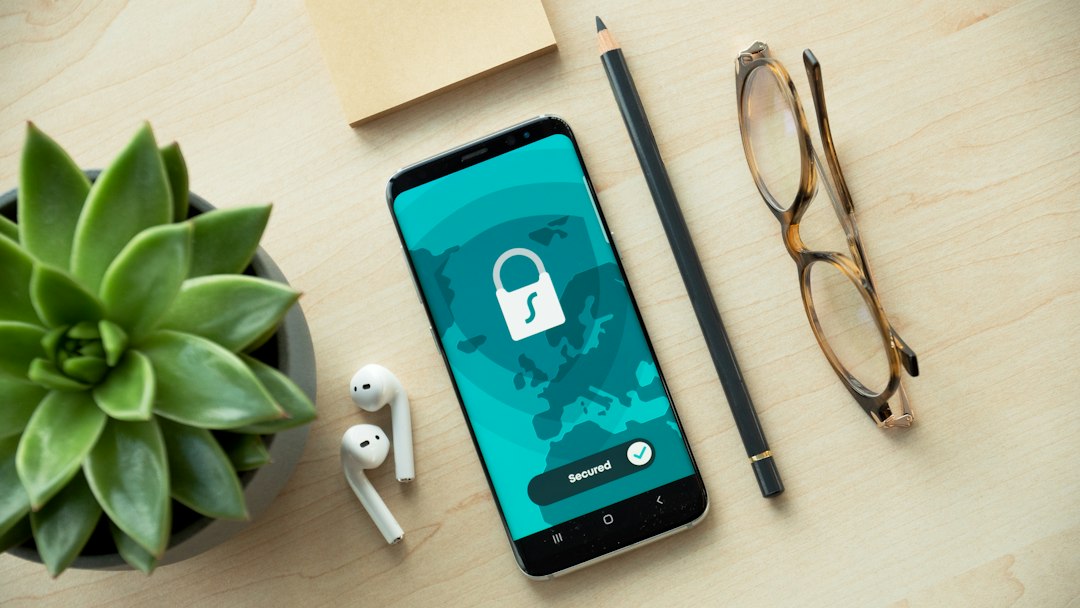
Before posting a screen recording of an AI avatar conversation, check which parts of the device and surrounding audio were captured. This six-step consumer guide compares iPhone screen recording with Android app-only capture.
A screen recording can disclose more than the chat
An AI avatar conversation may look like a single application window, yet a recording can capture notification banners, account names, personal photos, purchase information and spoken audio. That is why consumer testing should begin before the recording button is pressed. Identify who appears or speaks in the session and whether anybody else contributed private content. A digital human’s visual appearance does not remove the user’s responsibility to protect another person’s messages or recordings. The easiest mistake is sharing a clip because the on-screen character looks fictional while forgetting that the chat, background voices and notification previews are real. This guide focuses on ordinary mobile privacy checks rather than claims about what any particular AI provider collects on its servers.
Review what iPhone actually records
Apple’s iPhone user guide describes the Screen Recording control in Control Center, a short countdown before capture, and the optional microphone setting. A recording is saved to the Photos library where it can later be shared or edited. Apple’s support material also cautions that some applications may prevent recording particular audio or video. Before capturing an AI conversation, close unrelated applications, hide notification previews, and verify whether the microphone is enabled. If you only intend to demonstrate the visual interface, leave extra audio capture off. A muted speaker does not necessarily mean that the phone’s screen recorder cannot capture other permitted sounds. Make a brief test clip of nonprivate content and inspect the result rather than assuming the icon tells the entire story.
Understand Android’s app-only sharing option
Android 14 added app screen sharing through its media projection experience, allowing a person to share a single app window instead of the full device display in supported flows. Google’s developer documentation explains that this can exclude system interface elements such as the status bar and notifications from the capture. Availability depends on Android version and the recording application, so confirm the picker and preview on the exact device. Choosing an app window may reduce accidental disclosure, but it does not make private messages inside that window safe to publish. Do not assume an operating-system sharing feature overrides all application-specific protection rules. If a recorder requests broad access or screen-capture permission, review whether the request matches the feature you actually wanted.
Sanitize the clip before public sharing
After recording, review the first and last few seconds, where account-switching dialogs and permission sheets are easily exposed. Inspect every frame for display names, email addresses, QR codes, private links, device identifiers and background notifications. Crop or blur any information you are not entitled to share, and listen for names or other private speech. If the video demonstrates paid app features, avoid including payment tokens, receipts or another person’s subscription details. Keep the original private and share a separate edited export. Understand that sharing a video through a social platform may create another copy outside the AI app’s deletion controls. You should not promise friends that deleting the original clip will automatically remove reposts elsewhere.
Test a safe demonstration workflow
For a repeatable comparison, use a fictional test conversation and create two clips: one with the default recording experience and another using the narrowest available app-only recording option. Check visual boundaries, system alerts, sound recording state, playback quality and file destination. Write down the phone model, OS version, recording app and chosen permissions. This prevents reviewers from treating an Android 14 feature as universal across all phones or claiming identical privacy controls on iPhone and Android. If audio or video is blocked by the app, respect the block instead of trying to bypass it. A clear product demonstration can use an authorized built-in export, screenshots of nonprivate test data, or a simulated walkthrough when raw recording is unavailable.
A six-point checklist before pressing Share
Make six affirmative checks: consent for identifiable participants; no personal identifiers visible; microphone and system audio reviewed; notification and account overlays removed; correct audience chosen; and a clear plan for later correction or takedown. The checklist is an original consumer tool based on platform documentation, not a claim that Apple or Google certifies any AI avatar recording. When illustrating AI social products, explain that the characters are AI personalities or digital humans so viewers can interpret what they see. If the clip includes generated material, distinguish the authorized demonstration from an actual call with a real person. The primary references are Apple’s iPhone Screen Recording guide and Android Developers’ Media Projection documentation, both checked in November 2026. They describe platform capabilities, while permission to distribute individual content remains a separate question.
Sources
- Apple Support, Take a screen recording on iPhone (living device guide; checked 7 November 2026)
- Android Developers, Media projection and app screen sharing (Android 14 feature; checked 7 November 2026)
Unsplash photograph by Dan Nelson, for illustration.






